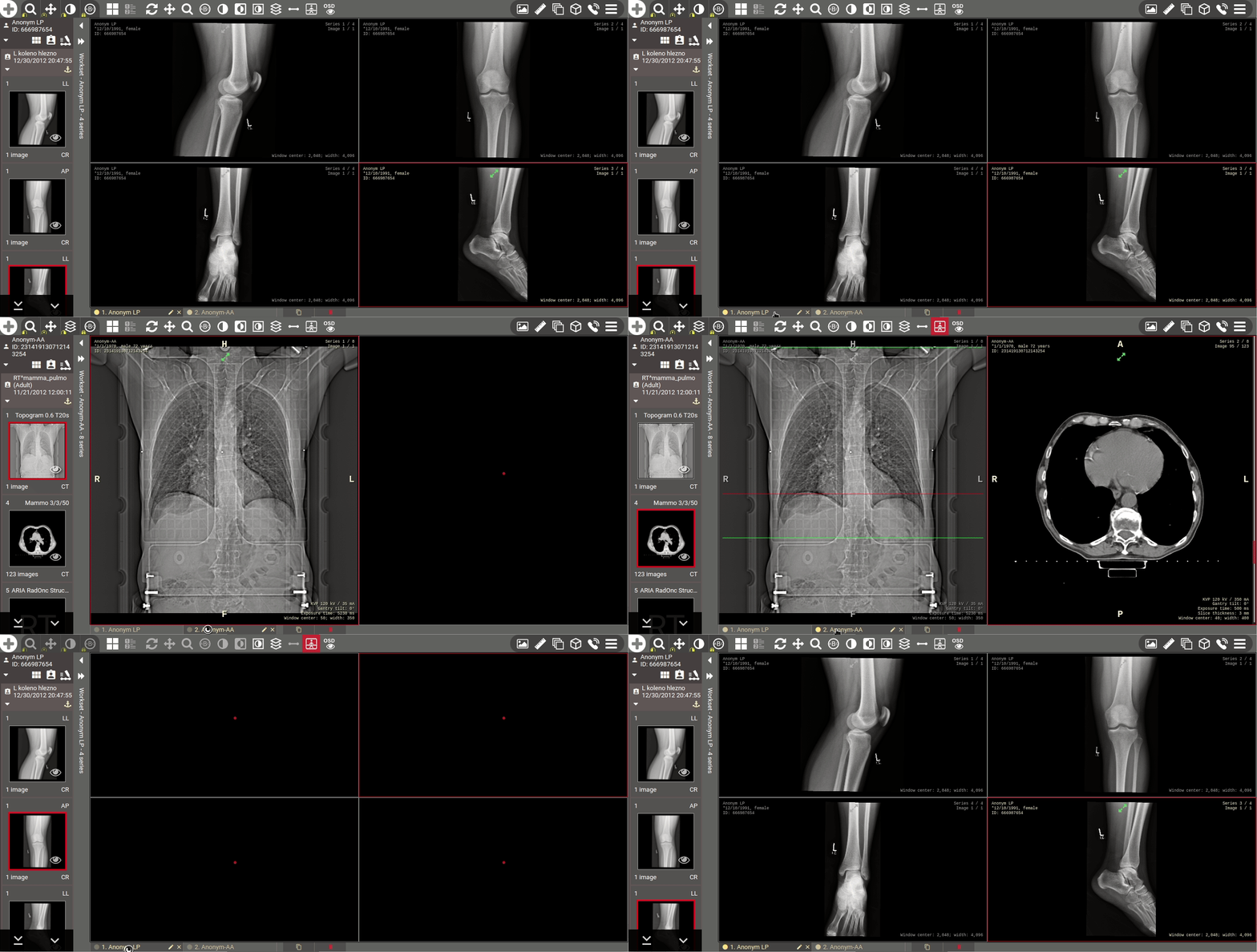
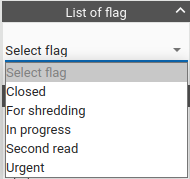
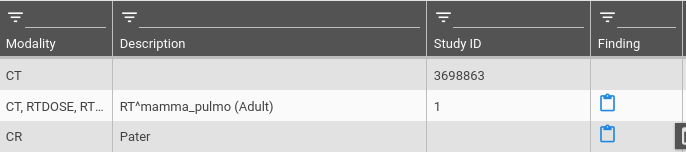
Ability to set a flag for a study – it is now possible to set status for each study – e.g. “for second reading”, “closed”, etc. Each study can have more of these labels assigned to it and they then can be easily filtered and searched through
Support for printing from Windows applications directly to PACS – the new tool allows user to select printing to a virtual PDF printer in any specialized application on the Windows operating system and automatically transfer this created PDF to PACS among other patient image documentation
New browser extension – the new extension allows, in addition to the original options for automatic placement of windows on other monitors, to determine the status of RAM usage and optimize the loading of images in the browser, while also offering support for printing of PDF to PACS as described in the previous point. The free extension can be found in the Chrome Store
Configuration of displaying OSD labels – for individual labels it is possible to change colors and font size, thus allowing the user to display important information more distinctively to speed up orientation
Change of the mouse cursor according to selected tool – user can now easily tell which tool is being used by changing the mouse cursor
Separate automatic synchronization in different view planes – the browser has so far allowed synchronization in only one view so if the user viewed for example 4 series, two in the transverse plane and two in the frontal one, automatic synchronization always worked in only one of the pairs of series. Individual planes are now synchronized separately
Convenient browsing of Hanging Protocol phases – newly defined keyboard shortcuts allow user to scroll through the individual views defined in Hanging Protocol
Display of the finding on the clinical monitor – it is possible to display the finding for examinations outside the diagnostic monitor and if the appropriate service is configured, it is possible to display a symptom for those who have the finding created directly in the list of studies
Left + right mouse button tool – until now it was possible to have three different tools configured for each mouse button. Now it is possible to have another additional tool assigned to it which is activated when the left and right mouse buttons are pressed at the same time. This saves time when switching to another tool and thus speeds up user’s work in general
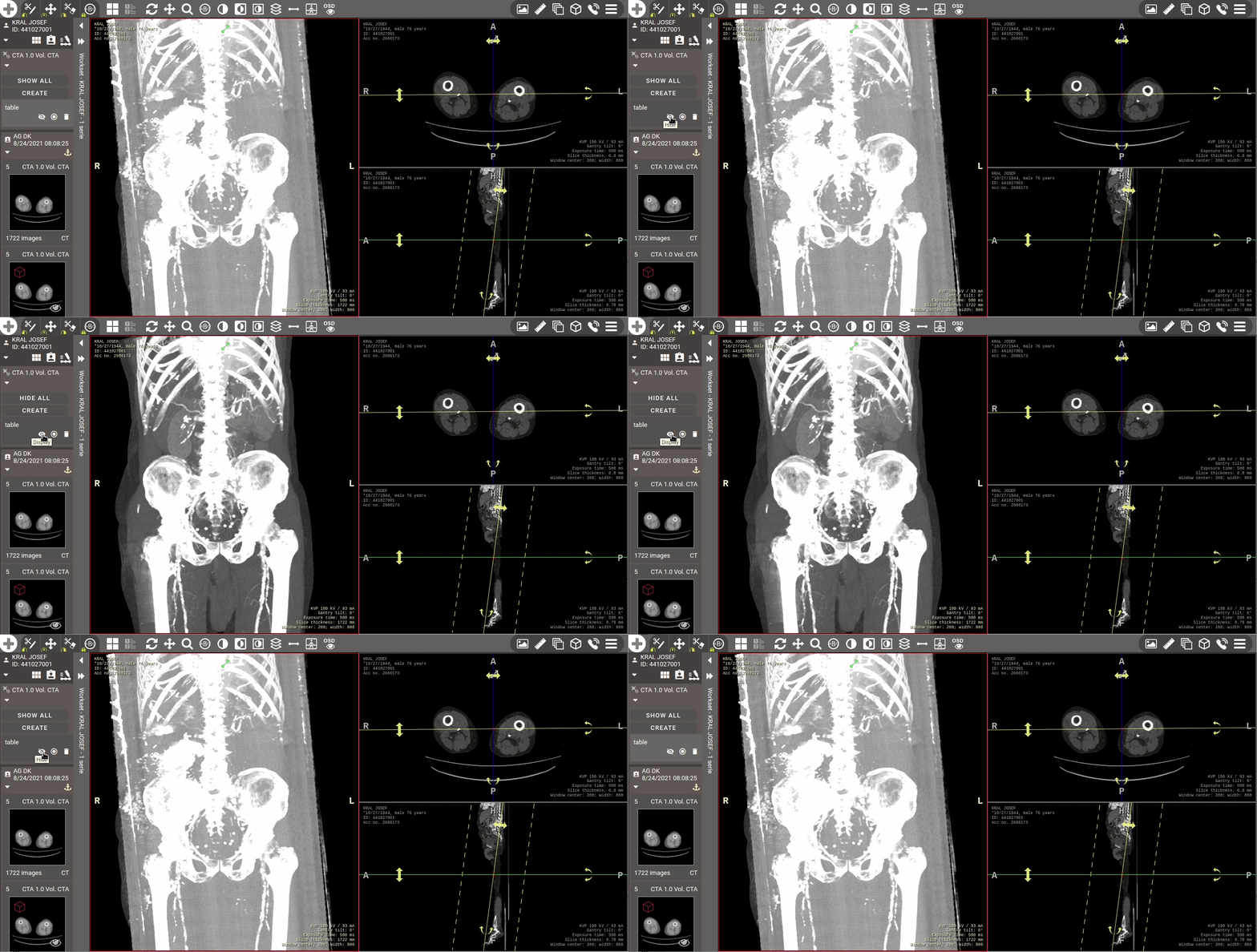
Windowing in DVR (VRT) – in the 3D volume view, it is now possible to set the window of interest in Hounsfield units, which are displayed in the image. In addition, the window can be defined by several transfer functions: start function, sigmoid, rectangular function or Gaussian function
Worklists changed to study level – after numerous user requests, the display of worklists has been changed to a display where a patient is no longer at the highest level but an examination is
XDS.b support – support of IHE (Integrating the Healthcare Enterprise) RAD-68 profile, which allows registration of all medical records (in case of PACS the registration of image examinations) in a central register of documents. The integration supports work with the MPI (Master Patient Index), thanks to which a consistency in patient identification can be achieved across all systems used in a given healthcare facility
Service for automatic DICOMization of files from a shared folder – if there is a device (e.g. ECG) that cannot produce data in DICOM format but produces for example PDF or JPEG files that contain patient identification in the file name, it is possible to use automatic services that, using a shared folder, automatically convert these files to DICOM format and save them to PACS
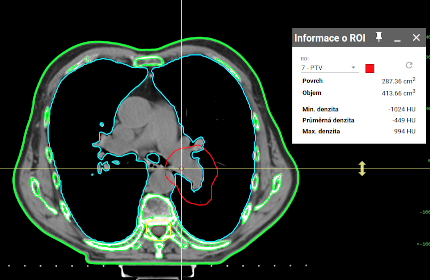
Contour interpolation in RTSTRUCT – starting with this version, it is not necessary to draw a contour in each section to mark a 3D volume. Instead, a contour can be drawn only in some sections and interpolation of those drawn contours can be used for other sections. It is possible to interpolate even during the drawing from the last drawn contour to the freshly drawn one, or it is possible to additionally select two sections between which the interpolation can be done
Acceleration of data loading into a browser running on obsolete servers – if DPGW was for some reason installed on an older server that did not have a battery-backed cache controller, image caching was slow because it always waited for physical confirmation of data writing on the disk (so-called fsync). Unlike PACS data, where the use of fsync is critically important for preventing possible data loss in the event of a“hard” server power outage, this confirmation is not necessary for temporary buffered data. Data that is now stored in the archive waits for fsync, data in temporary caches does not. The difference is insignificant on modern servers but on obsolete HW the acceleration is very significant
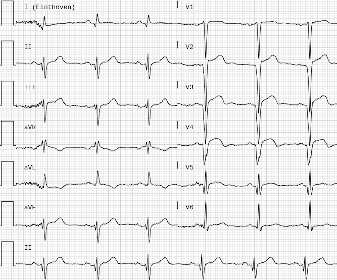
Enhancement of ECG viewing – it is now possible to choose between viewing ECG on a black or a white background. In addition to the signal enhancement settings, the “paper feed rate” can now be configured and all setting options can be saved to user settings and automatically applied to the next ECG viewing
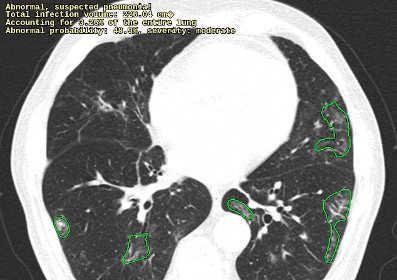
Loading Graphic Annotations from DICOM Presentation State – the browser now allows user to load graphic annotations from individual DICOM objects of the Presentation State class. An example of practical usage is viewing of automatic lung analysis of patients with COVID-19 which is performed by artificial intelligence
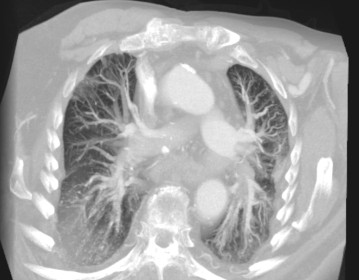
New FadeMIP volume viewing – FadeMIP (FMIP) volume display differs from the classic MIP viewing which displays the highest density of the volume in each projection beam, so that linear attenuation is still applied to the displayed density according to the distance from the beginning of the displayed volume section (slab)
Ability to block users from accessing patients other than those called from HIS – if the browser in integration with a hospital information system or other third-party application is used, it is now possible to allow users to access only the data of a patient which was opened directly from that application. Until now, it was possible to restrict access to only one specific examination. However, now it is possible to open one examination and allow the user to trace older examination of the currently opened patient at the same time
3D volume measurement – The diagnostic version of the browser now, in addition to loading and displaying RTSTRUCT, allows you to draw volumes in individual sections and measure their volume, surface and average density. Volumes can now be marked in any volume CT picture
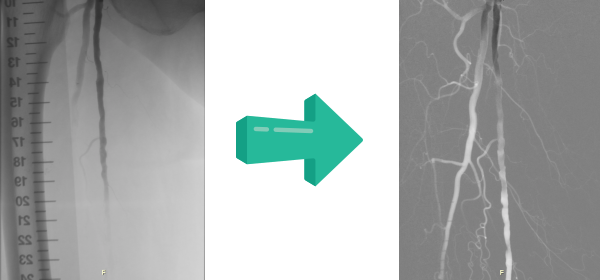
Digital Subtraction Angiography (DSA) – Viewing enabling the application of a mask in angiographic images which makes it possible to achieve a significantly higher image contrast
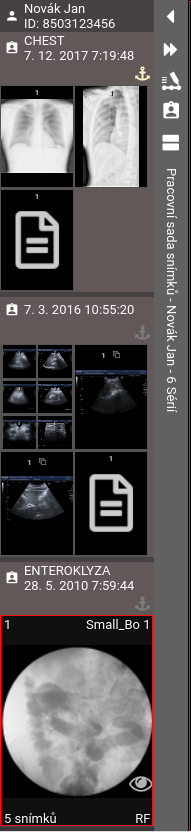
Improved viewing of working set – The working set in the browser now offers two display options. In addition to the existing one for displaying the examination of one patient, there is also a viewing that tries to maximize previews and at the same time display as much data as possible without the need to scroll.
Possibility of using differently priced storages – For storing PACS data it is now possible to use differently priced storages within one installation. Therefore, it is possible to have working data stored in a high-speed storage, while older data can be stored in a cheaper slower storage. The scheduled service then automatically transfers data between these repositories outside the peak hours (e.g. at night)
Generating of random Czech / English names for anonymization – In case of using anonymization so far, random combinations of letters have been generated for patient names. These however complicated orientation in a larger amount of anonymized data. The function of anonymization now offers the ability to generate random Czech or English names
New settings of keyboard shortcuts – all keyboard shortcuts can now be set in one shared dialog window while it is also possible to have more functions on one keyboard shortcut, with the application of action to the current work context. For example, the Escape key is used during measurement to cancel the ongoing measurement, while outside the measurement it resets the mouse tool settings to the original settings
Loading of other series in the background – as soon as the whole series that the user is currently working on is loaded, other series start automatically loading in the background, thus, when the series is changed by the user, the transition to a new one is much faster
Improved ROI measurement + Histogram tool – a user has now the ability to easily change which data he wants to view to measure areas (ROI), choosing from: average density, range of density values, minimum density value, maximum density value, content area and perimeter of the measured pattern. After clicking on the button, a histogram with other statistical data of the measured area can be viewed
New measuring tools – new instruments include measuring the Böhler angle (for ankle) and measuring orthopedic angles of the lower limb (for knee)
Simplified tool for measuring volume – when drawing ROI in individual sections of the series, it is possible to display the volume of all these areas in cm3
Improved measurement behavior – based on user feedback, measurement behavior in images has been improved. Control nodes (squares) are now displayed only when the mouse is moved over the measurement. Moving the measurement can now be done in a more intuitive way, simply by dragging the measurement away from the control nodes. Furthermore, it is no longer necessary to deactivate the selected measurement to create another
Enhancements of Older Patient’s Examination tool – in addition to the Timeline tool, which has undergone a number of changes in the recent versions, a tabular view of all other examinations of the active patient is now available. This table is displayed at the bottom of the screen and allows to quickly view an older study for comparison with the current examination
OAuth2 OpenID authentication support – in addition to Microsoft Active Directory / LDAP, the OAuth2 server can now be used for user authentication. Therefore, for example MyID authentication or bank identity can be used
Ability to customize the SR viewing – for some structured reports with for example medical findings, it can be set that some items are hidden automatically (for example: Observer type, Report language), or that patient identification and examinations are displayed as compact as possible so that there was as much space on the screen as possible for the finding itself
Setting the default tools according to the type of examination – it is possible to set that for example for CT images there will always be a tool for browsing the series on the left mouse button, while for X-rays there will be a magnifying glass. Until now, it was necessary to use Hanging Protocols to automatically set instruments according to the type of examination
View measurements stored in xVision – users who previously used the xVision viewer and had measurements stored in it can now view these measurements and edit or delete them
Displaying localization lines from Enhanced CT Image Storage – localization lines are now also displayed from multi-frame CT image data
Configuration of stations according to cookies and number of screens – until now, the configuration of the station was determined according to the IP address from which the client opened the web interface of the application, however, this caused problems when the user was in a NAT’d network. Station identification solves this problem using cookie. Moreover, while opening the browser, the number and resolution of connected screens is detected, which allows to have for example a laptop used in multiple workplaces with different numbers of external screens without having to reconfigure screen layout in the browser with every move of the device
Import of zip, 7z, rar and iso archives including those password protected – not only zip archives can now be imported into the browser, but also 7zip, rar and iso. If the archive is password protected, the user is prompted to enter a password during the import, after which the import continues
New timeline – there has been a slight change in the timeline which is now better adaptable to different viewing sizes. Furthermore, the individual years on the timeline are also color-coded. If only part of the examination is opened, it is possible to drag the rest of the current examination from the timeline using the double-click
Adjustment of the size and number of OSD labels when reducing the screen – in case of dividing the display area into a larger number of panels, the font size of OSD labels are automatically reduced and the labels selected in the configuration are hidden
Possibility to save all measurements in the study at once – if multiple measurements are performed in different images and series from a given examination, all of them can be saved into one new series at once
Optimization of image loading and viewing – thanks to the use of multi-thread processing and unification of viewing shaders, image downloading and viewing is now two times faster and it requires half the operating memory than in previous versions (does not apply to Internet Explorer 11). Owing to this speeding-up, it is possible to load larger number of images in advance and thus increase user comfort by faster response
Improved playing of multi-frame images – since playing of multi-frame video loops requires a large amount of data transfer (some loops have a speed of up to 50 frames per second), the above optimization is used to save bandwidth, allowing more frames to be loaded in advance for smooth playback
MPPS support – a number of modern modalities support sending so called Modality Performed Procedure Step, which is information from the modality about taking pictures or performing some part of the planned action. MPPS objects can be used to automatically close requests in the worklist or they can also show information about the radiation exposure of the examination. All MPPS objects are stored in the archive and can therefore be worked with retrospectively
Improved possibility to set font size and controls – the size of the font and all controls not only in the browser but also in the search and configuration dialogs of PACS can now be easily changed in the Display Settings tab