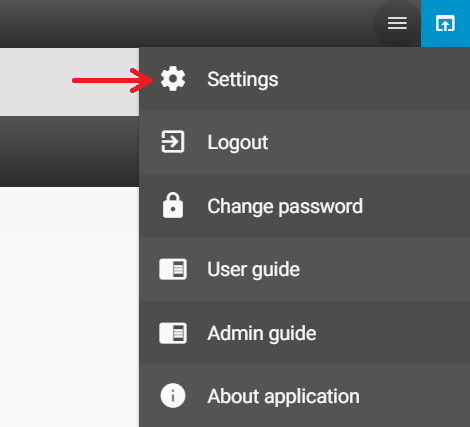
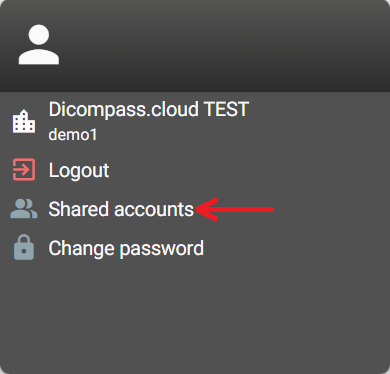
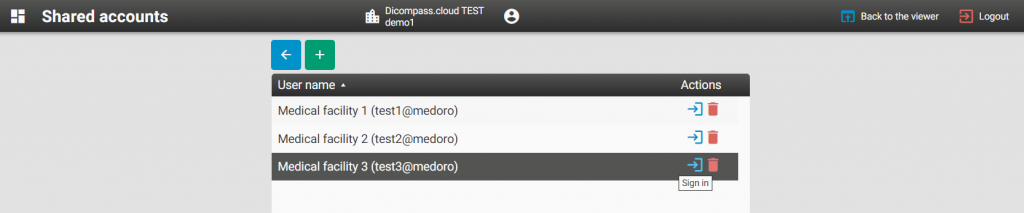
Support for shared user accounts in Dicompass Cloud – This new feature allows users who, for example, evaluate radiology examinations for multiple healthcare facilities can easily switch between their Dicompass Cloud accounts for those healthcare facilities. By Opening the Shared Accounts tool in the browser settings, you can choose a target cloud account and work uninterrupted “on another workstation”. To create shared accounts in the Dicompass Cloud, you must enter your login details by adding them to the DICOM browser configuration. After that, login details for specific access to the target cloud account will no longer be required and the user only needs one secure login to their Dicompass Cloud account.
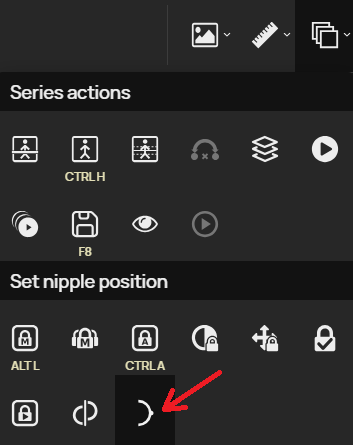
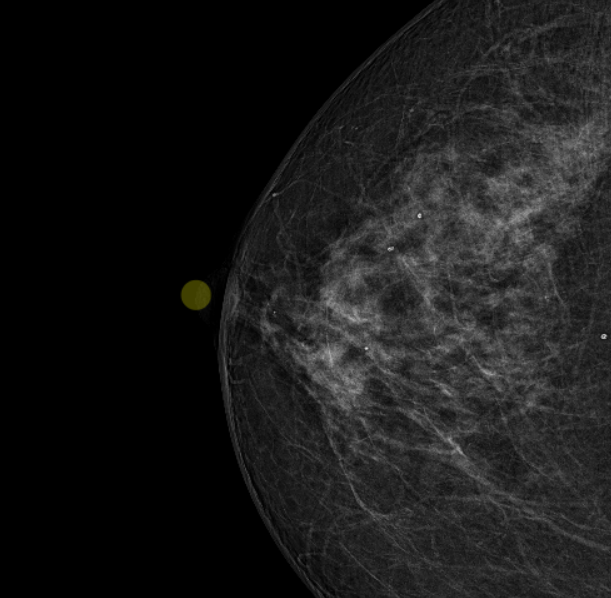
Manual Nipple Position Tool – The “Set Nipple Position” tool allows the user to manually adjust the position of the nipple in the image if the nipple localization was incorrectly detected by the viewer. After selecting the “Set Nipple Position” tool, click on the correct nipple location, the yellow highlight will move and then the paired nipples will be repositioned according to the newly selected position.
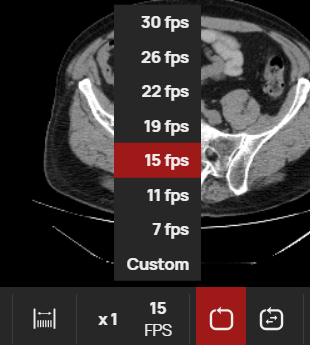
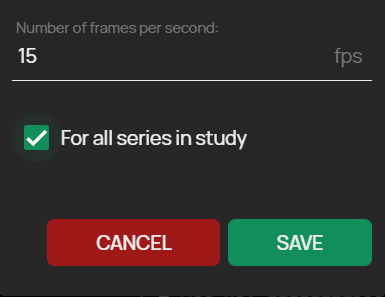
Set the playback speed for all players in a given study – This tool makes working with the DICOM viewer player faster and easier. If you have more than one video/image series displayed in a screen layout, this version of DPGW allows you to set a single playback speed for all layout windows by specifying a “Custom” speed.
Waveform multiplex switching – If the ECG modality contains a multiplexer, i.e. multiple ECG signals in one study, this function can be used to select the requested active group of ECG signals
Bug Reporting – In case the system is acting in a non-standard way, it is possible to use the “Bug Reporting” tool to capture the current state of the system in a log file with the necessary information for the manufacturer’s support team. This tool is located in the bottom right corner of the screen.
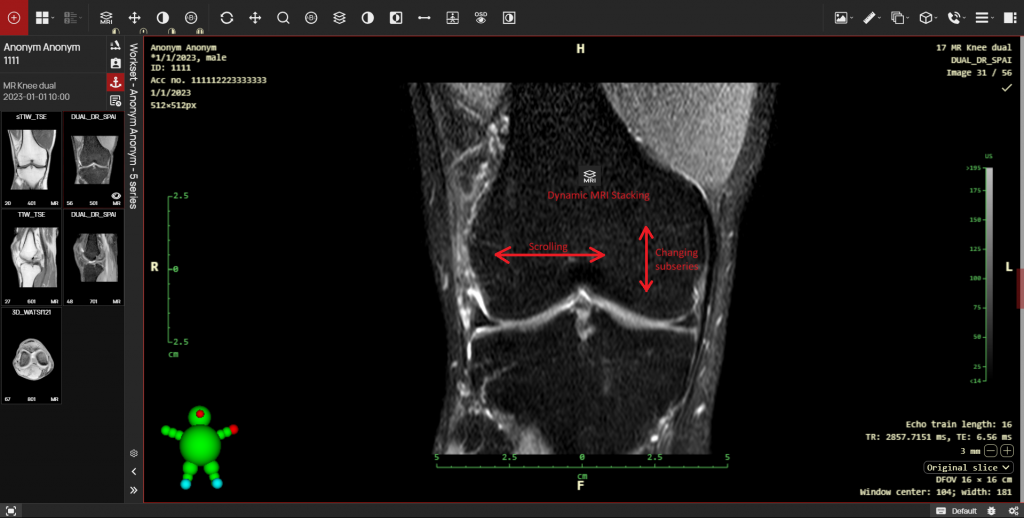
Dynamic MRI Stacking – This tool is used for scrolling and switching subseries of MRI series with the selected mouse button and supplements the possible series scrolling with the mouse wheel or with the arrow keys and the “Split Series” tool.
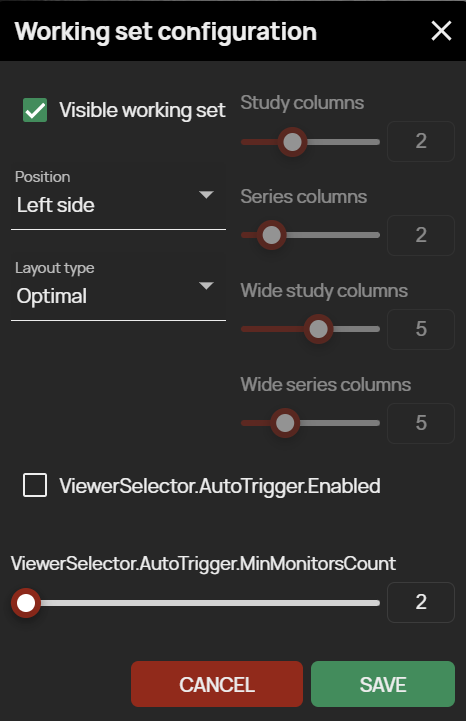
Expanded workset configuration options – Now you can use the workset configuration to select the number of columns for displaying thumbnails in the workset and choose how to drag and drop the selected series into panels using widget or by dragging and dropping into a specific panel
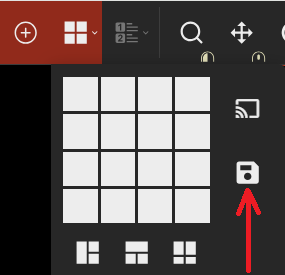
Save current panel layout – Use this tool to save the currently selected panel layout. When the study is reopened, the panel layout will match the redefined layout selected during saving, in case the hanging protocol is not applied. This tool has replaced the “Save viewer state” function.
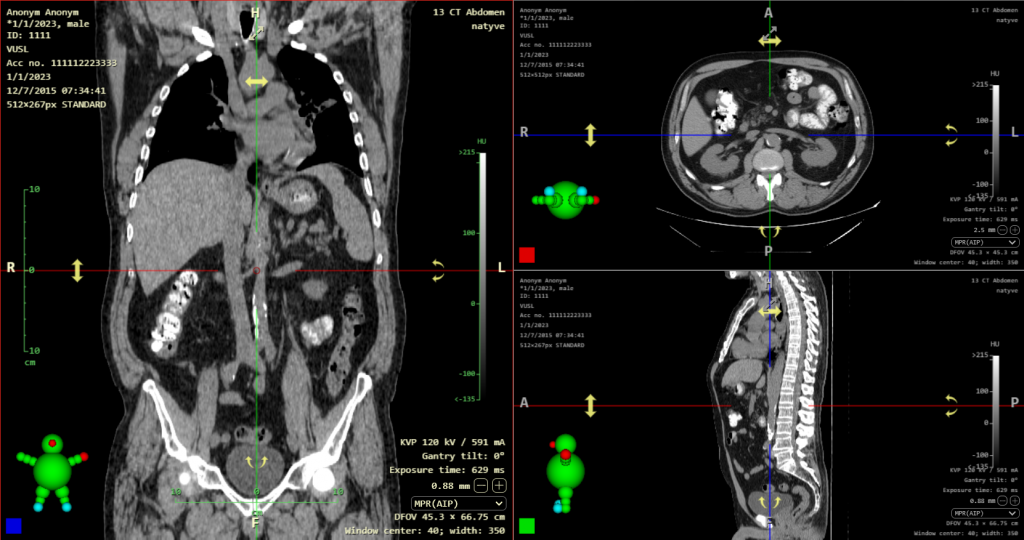
Hiding the crossing of the localization lines – Now in this version, the circle around the crossing of the localization lines is hidden, where they will no longer block the diagnostics in the MPR view after moving in the volume using the crossing of the localization lines or the 3D cursor.
Automatically selected default tool when changing modality – In case you have set default tools for each modality and the panels display examinations of these modalities, the default tools are automatically switched when you switch to the active panel with a different modality, according to the set default tools of the modality.
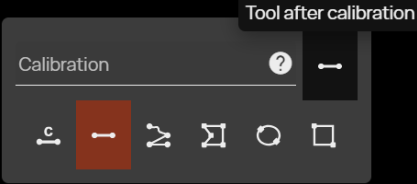
Option to select tool after distance calibration – In the table for entering values displayed by the “Calibration” tool, the function “Tool after calibration” has been added. By selecting this new function, it is possible to select the tool that will be applied to the mouse button after calibrating the distance in the image.